Using Power Query for data reconciliation across two sources with a common ID
There are many ways to reconcile data, especiially for those with a sql db at their disposal. We had data in two systems that was supposed to be the same but had some discrepancies so I took a stab at sorting through it using power query and landed on a remarkably straightforward approach.
In my case one source was XML and the other salesforce. Power query has some odd behaviors with how it handles some data types in xml files, but i will leave those out and hope XML will disappear and make the world a better and safer place.
This exercise assumes you have two queries in a single power query file - one for each data set, and the column headers are the same in both files. If needed, there are ways to use a mapping file to transform the column names, which others have written about.
There were two key features that make this work
1: Unpivot other columsn
in each query, right click on the unique id column, and then select “unpivot other columns” which will turn your file from
| id | firstname | lastname | claim to fame |
|---|---|---|---|
| 111 | gorav | seth | salesforce mvp |
| 222 | peter | churchill | salesforce mvp |
to
| Id | Attribute | Value |
|---|---|---|
| 111 | firstname | gorav |
| 111 | lastname | seth |
| 111 | claim to fame | salesforce mvp |
| 222 | firstname | peter |
| 222 | lastname | churchill |
| 222 | claim to fame | salesforce mvp |
2: Merge with multiple columns as the key
Now merge the two queries as new, matching on both Id AND Attribute. Prior to this I had not realized you can select more than one column as the key when merging tables in power query. To match on multiple columns, simply ctrl click the columns in order, ie source 1, id, value, source 2, id, value
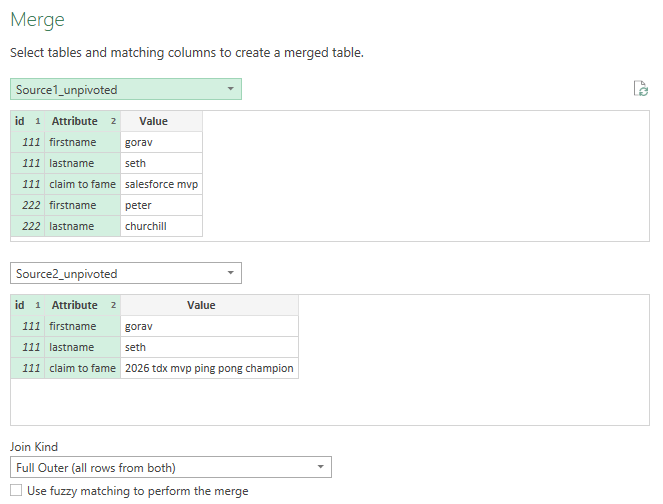
Select an inner join if you only want to compare fields that exist in both sources, or use an outer join will also show fields that only exist in one of the sources.
After merging, expand the source 2 table, and include the value column only.
The output will now be
| id | Attribute | Value | Source2.Value |
|---|---|---|---|
| 111 | firstname | gorav | gorav |
| 111 | lastname | seth | seth |
| 111 | claim to fame | salesforce mvp | 2026 tdx mvp ping pong champion |
| 222 | firstname | peter | |
| 222 | lastname | churchill | |
| 222 | claim to fame | salesforce mvp |
Add a custom column to compare the value from the two sources in order to just see the rows that are different
if [Value] = [Source2.Value] then 0 else 1
And there you have it. in my example i did a full outer join so i see the delta for rows that had a value in source 1 and no value in source 2, as well as rows that exist in both source 1 and source 2 with different values.
| id | Attribute | Value | Source2.Value | Has Delta |
|---|---|---|---|---|
| 111 | firstname | gorav | gorav | 0 |
| 111 | lastname | seth | seth | 0 |
| 111 | claim to fame | salesforce mvp | 2026 tdx mvp ping pong champion | 1 |
| 222 | firstname | peter | 1 | |
| 222 | lastname | churchill | 1 | |
| 222 | claim to fame | salesforce mvp | 1 |